
Import Instructions and Troubleshooting
The information on this page applies only to school administrators who have ordered an online or paper In-School CLT10 or CLT. It does not pertain to CLT3-8 exams or to individually-purchased remotely-proctored CLT exams.
Ordering vs. Importing
- Ordering: Scheduling your school's test date with CLT. Orders must be placed prior to the order deadline for each test. You can place an order here.
- Importing: Uploading your students’ information into your school administrator portal. This is what creates student registrations. Students must be imported prior to the import deadline for each test.
If you follow the importing instructions below, you will avoid most issues! If you do encounter any problems, please contact schoolsupport@cltexam.com. Outside of test days, our standard office hours are M-F, 9:30 AM - 5 PM ET.
Instructions
Step 1: Log In
Log in to your CLT school administrator account. You may need to reset your password. If you have any difficulty, or if you need to add an additional administrator account for your school, please contact schoolsupport@cltexam.com.
Navigate to the "Student Import" tab at the top left of your screen.
CLT requires an Order Ticket ID to import students for the CLT and CLT10. The person who ordered for the test date was sent a confirmation email with the Order Ticket ID immediately upon submission. Once you input the code and press the "Continue" button, you will be able to progress.
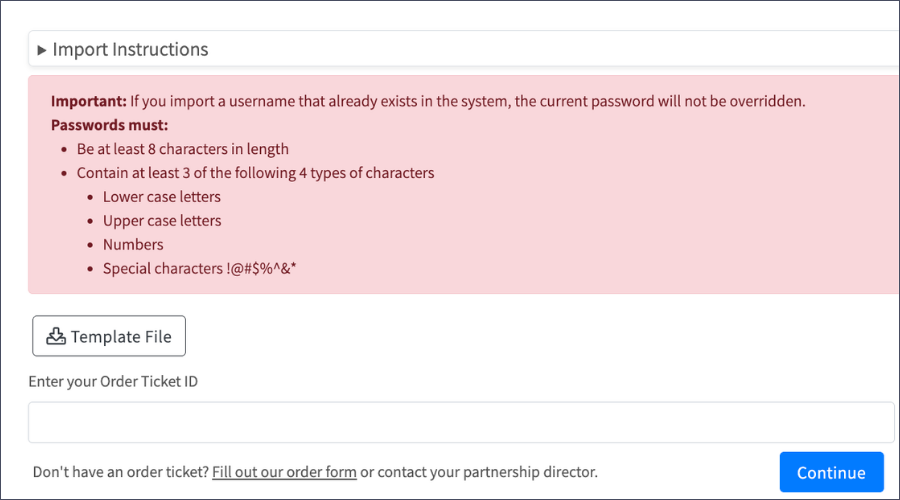
If you have not yet placed an order for this test date, you will need to do so before you can import any students.
Next, click the Template File button. We recommend you download the file and paste all your student information into it. This will help reduce the chance of formatting errors, which can prevent uploads. Note that you cannot use formulas to populate your spreadsheet.
Step 4: Complete your Spreadsheet
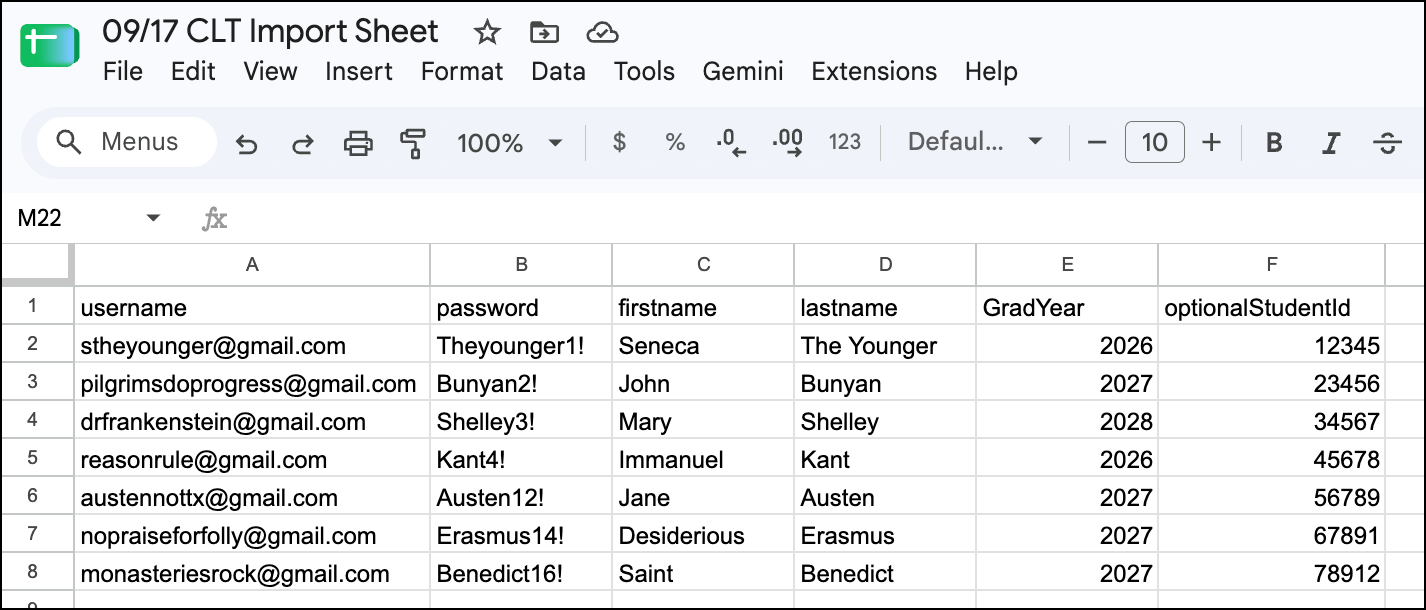
Using the template file, fill out all rows in columns A - E, one row per student. Include all the students who will be taking the exam on the test date for which you are registering, even those who already have CLT accounts.
Once you have completed your registration spreadsheet, save it in a secure location for future reference. This can double as your "student roster", which you should provide to your proctors on test day to help resolve any potential login issues.
Each row of the spreadsheet must contain the following information:
-
Column A: username - A unique email address/username
-
Column B: password - A secure password. Please see the tab below for requirements
-
Column C: firstname - The student’s full, legal, first name
-
Column D: lastname - The student’s full, legal last name
-
Column E: gradYear - The graduation year for the student
-
Column F: optionalStudentId - An optional school-specific ID
You can see an example what your sheet should look like below.
We highly recommend that you use an email address that the student can access. This makes password resets much easier.
- If the student already has a CLT account, use that username.
- If they do not, we recommend using a school or personal email. This can be a parent's email if the student does not have their own.
Watch out for re-used usernames:
Each student's CLT username must be unique to that student. You cannot re-use an email address. Common examples of this would be a graduated student, sibling's, proctor's, or school administrator's CLT account. Using the same username for multiple students may result in students testing under the same account or issues with score association.
TIP: If the email is already in use but is a Gmail account, you may use the + trick. There can be one account under parent.email@gmail.com and another under parent.email+1@gmail.com (or +2, +Johnny, etc.). Any emails addressed to the "+" account will be automatically rerouted to the actual account.
Passwords must be a minimum of 8 characters and contain at least 3 of the following:
- Lower-case letters (a-z)
- Upper-case letters (A-Z)
- Numbers (0-9)
- Special characters (e.g., !@#$%^&*)
Passwords may change if students reset their passwords from the login page.
To ensure account security, we strongly recommend that school administrators set a unique password for every student. We suggest using a password generator, such as Lastpass.com, if students do not have pre-existing account passwords.
NOTE: The import will not overwrite passwords for existing student accounts; such students will retain their existing passwords. For such students, just enter “N/A” in the password column of the spreadsheet.
A. Click “Choose File,” and select your sheet
The test type and date will be auto populated based on the Order Ticket ID used. Be sure the sheet you are importing is for this specific date.
.png?width=2000&height=549&name=test%20type%20and%20date%20(2).png "test type and date (2)")
B. Click “Preview File” to ensure no errors occurred
This will show all the student information as it will appear. Be sure the first and last name are in the correct columns.
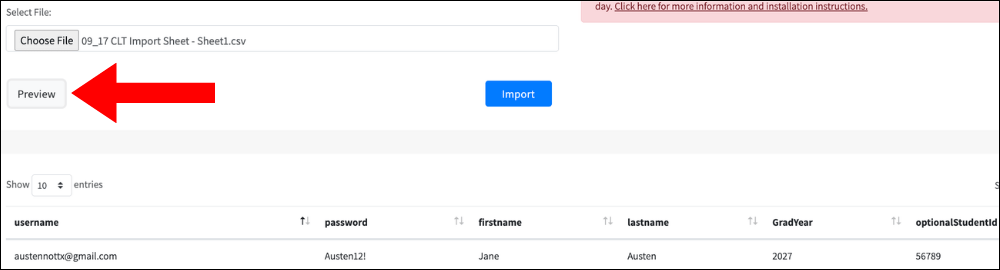
C. Click “Import” to register your students
A "Process complete" message should appear along with a table showing the import status of each student. Click the column headings in the table (such as "Username" and "User Import Result") to sort the results and check the status messages to ensure that all your students were properly registered.
.png?width=2000&height=472&name=import%20success%20(1).png "import success (1)")
The below warning does not indicate an error, it just means that your import registered the student without changing the password. The student’s password will be what was set when the account was first created, or upon subsequent resets. See "Troubleshooting" if you have more questions.

Viewing your Registrations
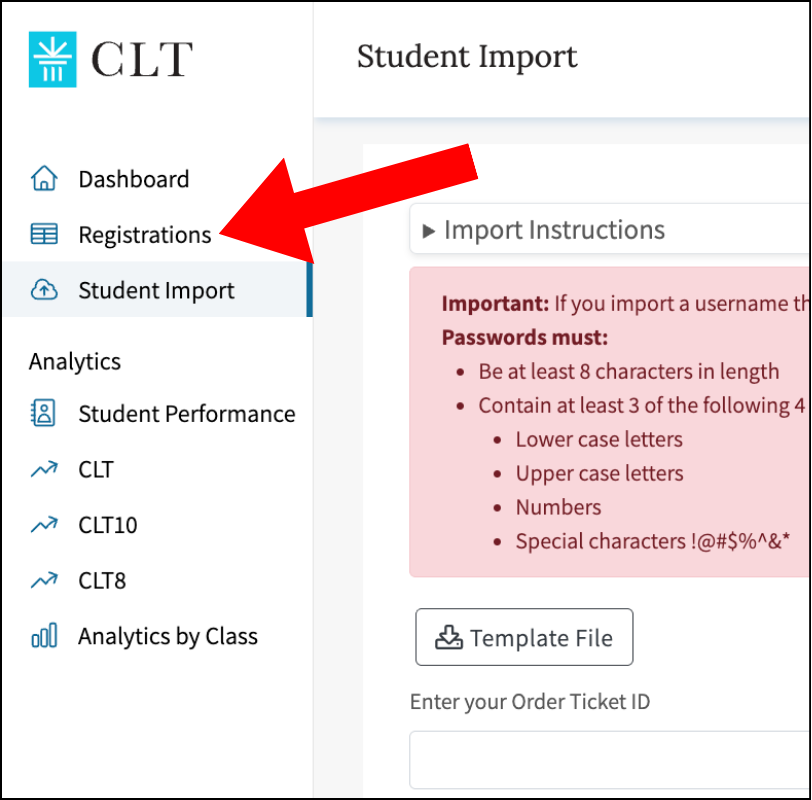
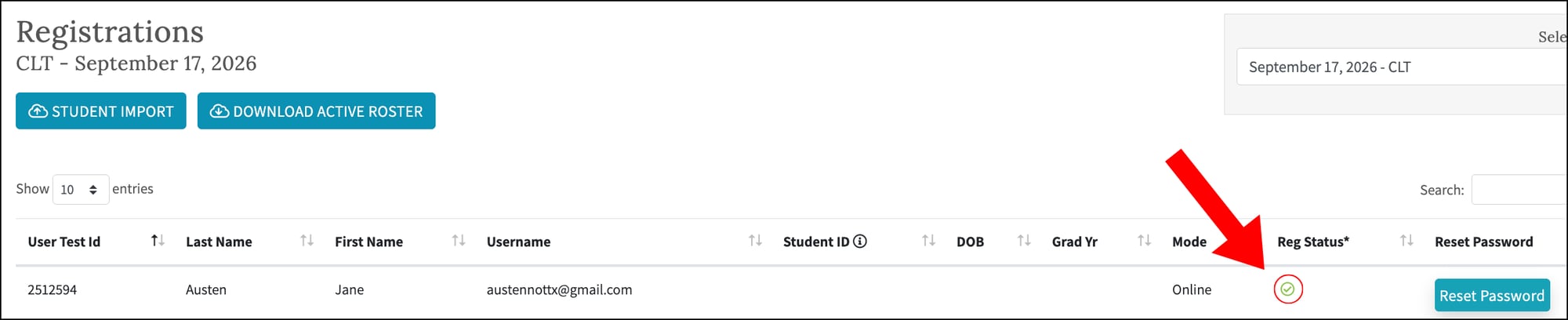
To view your current registrations, click the "Registrations" tab on the left sidebar and select the test date. Compare that list with the spreadsheet you imported to make sure all students were registered.
If you need to register additional students for the test date, import a second spreadsheet containing the information of only those additional students.
Step 6: Archive your Spreadsheet
Your spreadsheet is your permanent record of your students’ usernames and passwords. CLT does not have access to your students' passwords. We can help you reset your password, or change a username, but the best practice is to maintain a well-organized archive of your students’ login information.
In case your import fails, you may get an error message, a spinning loading wheel, or a browser pop up.
Please check for the following list of common issues before reaching out to our school support team. Using the template import sheet is the best way to avoid many common issues.
The file needs to be savd as a .csv or .xlsx file. If it is not either, the upload will not work.
The column headers need to match the Template File exactly. There can be no capitalization or spaces between words. Watch for white space at the end of the words!
If you have used formulas to input information, the upload will not work. You can copy and paste the content from a different sheet if you need to!
Make sure you have each student only listed once. A duplicate student will produce an error on that registration.
The passwords need to meet our password requirements. Please see here for the password requirements. Remember: inputting a new password will not overwrite the current password.
The email addresses must all be in valid email address format. Make sure there is an @ symbol in each address and the .com/.net is included. Correct example: teststudent@gmail.com.
Students may not be registered for both the in-school and remotely-proctored test on the same test date. If a student's username is registered for both, their remotely-proctored registration will be rescheduled to their next available test date.
If you have tried all troubleshooting steps and are still unable to import, please take a screenshot and email it and your import file to schoolsupport@cltexam.com.
This will help us diagnose and solve your issue as quickly as possible!
.png "Import Errors (2)")
How do I locate old/forgotten student usernames?
Please keep your old import sheets in a single location for reference, or keep a master spreadsheet of all of your students’ usernames.
To search in your admin records, first navigate to the "Registrations" tab at the top left of the page to view a list of all your existing CLT test-takers. You can search by first and/or last name. You can expand the list using the dropdown button at the top left of the table.
How do I reset a student password?
You can reset a student password any of the following 3 ways:
1. Student Reset: The student can reset it themselves by going to cltexam.com and using the "Don't remember your password?" feature.
2. Reset via the Administrator Dashboard: You can reset a student's password via the "Registrations" tab on their administrator dashboard (this option only exists if the student's account was created via an import by an administrator from that school).
3. Contact CLT for a Reset: An administrator can email schoolsupport@cltexam.com and request that CLT reset a student's password. For bulk password resets, you can send a .csv file with the student usernames and desired passwords, and CLT will update them for you.
What happens to old passwords when I import a student for a new test?
If a student already has an account, importing the same email will not create a new account. Instead, it will simply register that student for the test in question. It will not change the previous password, even if you include a new password in the Password field.
How do I change a student’s username/email or name?
Please email schoolsupport@cltexam.com with a request. If there are multiple students, please include a .csv or .xlsx file with First Name, Last Name, School, Old/Existing Username, and New Username. Do the same with incorrect or swapped first and last names.
Can I request a merge if a student has multiple accounts?
It depends! If a student has a personal account and a school account, the student must contact CLT to request the merge themselves. If they have multiple school accounts due to typos, those can be merged upon an administrator's request. The administrator will need to provide the email addresses for all relevant accounts and the student's name.
How can I add additional students to my test registration?
If you realize after your initial import that you need to include more students, you can add them by importing a .csv file just like you did with the initial registration. This is the process no matter the number of students being added. You do not need to include your already-uploaded students on that new spreadsheet, but it won't cause duplicates if you do include them. If you need assistance, please reach out to schoolsupport@cltexam.com.
How do I remove a student from my registration?
Click on the "Registrations" tab on the left sidebar and select a test date to view all students registered. To cancel a student’s registration, click on the green checkmark in the "Reg Status" column. Once canceled, the green checkmark will change to a red x.
If I import my students and then notice an error, what do I do?
If you notice any errors after importing your students (some are missing entirely, lack complete information, have typos in their username or legal name, or the name of another student appears on the roster), please reach out to schoolsupport@cltexam.com.
Importing your roster multiple times will not update the information for your registered students.
Where can I find my student roster?
You can access your roster in your administrator dashboard. Navigate to "Registrations" and pick the test from the drop down at the top right. Click on "Download Active Roster" to download a .csv of the student data displayed on the screen.
Note: this roster does not contain student passwords. Your testing coordinator will need to maintain a record of the passwords that they created via their import file.
What is an Optional School ID?
Schools often have internal identification numbers associated with their students in their own student management systems. This field allows administrators to associate that number with the students’ CLT registrations so that they can easily look up the data using their internal school ID.
When should students be imported?
Import deadlines can be found in the School Dates and Deadlines Document. Reminder emails will also be sent to your school’s point of contact.
Thanks for choosing CLT! If you have any questions after reading this page, please contact us at schoolsupport@cltexam.com.