
CLT/CLT10 Online Test
Administration Manual
This manual is your guide to administering the online CLT/CLT10. Administrators must carefully read this before administering the test and adhere to all of its guidelines. By administering the CLT the school acknowledges that they are responsible for upholding CLT-specific testing requirements.
Customer Support
Please contact us via the live chat feature on our website should an issue arise that you are not clear on how to resolve. During test days, CLT will have live online support from 7AM to 5PM EST for in-school test administrators and proctors. If you cannot access the chat, please see this paragraph for more information.
If the above does not work for you, try accessing the chat on your phone, email us at schoolsupport@cltexam.com, or reach out to us via phone (443) 782-3733. For questions related to ordering for other exam dates or test types, please contact your partnership director.
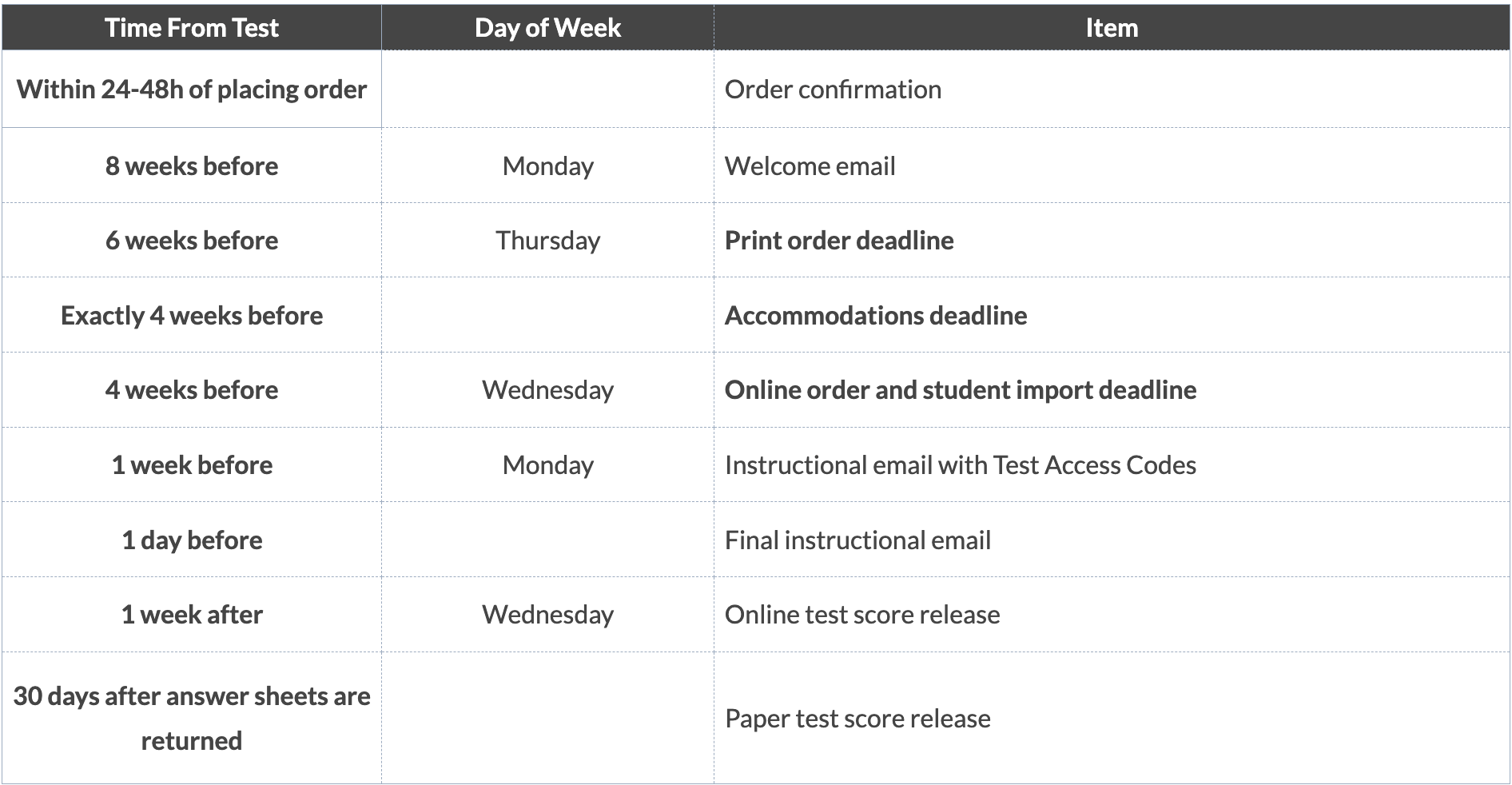
Each school should identify one point of contact (e.g., a test coordinator) to serve as their main School Administrator. This contact will receive all test-related communication including reminders about test-specific dates and deadlines starting about eight weeks before an exam.
Please see the picture to the right for a typical email schedule.
Multiple contacts from a school may request a CLT School Administrator account. Anyone with an administrator account can register students, upload rosters, and view scores. Proctors do not need an account in order to proctor tests. To request changes to an account, please email our support team.
Utilizing the CLT Dashboard
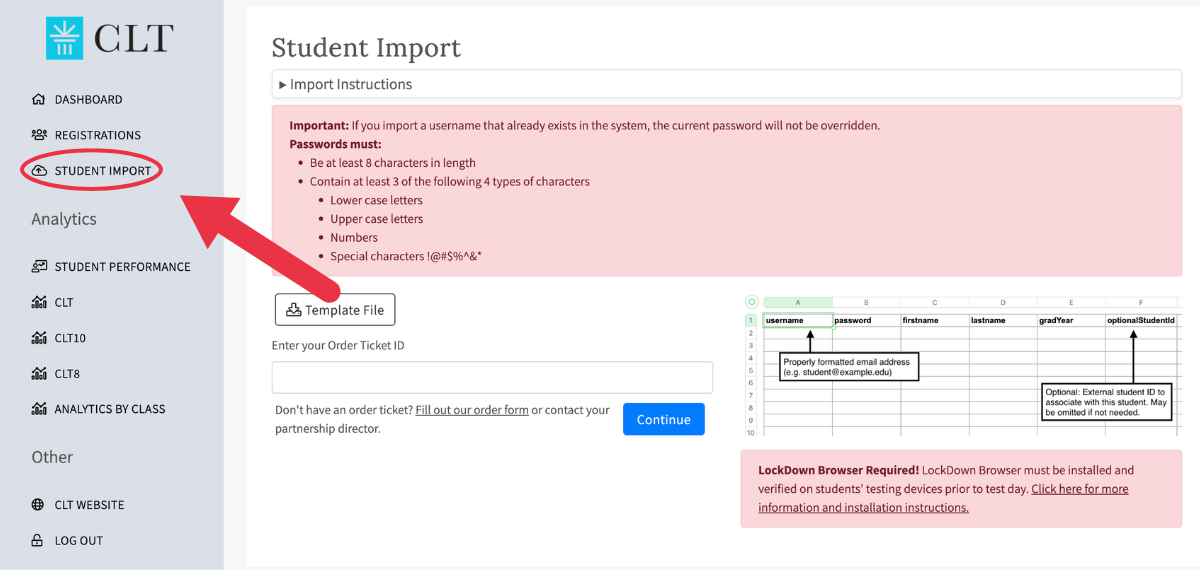
To access your CLT School Administrator dashboard, sign in at cltexam.com. Administrators can import student rosters via their dashboard after entering their Order Ticket ID. Importing instructions will also be emailed to the school’s point of contact ahead of test day.
Student Registration Status
Administrators can deactivate registrations via the dashboard. Deactivations should result from things like a student absence on test day, a student being asked to stop testing or leave, or when a student test appears as “in-progress” after they should have submitted it. Clicking the green checkmark icon under “Reg Status” will deactivate a test and turn the icon into a red “X”.
-2.png)
Password Resets
Admins can reset passwords via the admin dashboard for school-created accounts (the “Reset Password” button will appear blue). For student-created accounts (the “Reset Password” button will appear grayed-out), their password can be reset via the “Don’t remember your password?” function on the login page. The school support team at CLT can also reset individual passwords and provide bulk password resets if needed.
Test Status
Once any student at your school has begun testing, administrators can see test status (Not Started, In Progress, or Submitted) by refreshing their dashboard.
Accommodations requests should be submitted at least four weeks before testing. Requests must be submitted via the Accommodations Portal.
See our Testing Accommodations site for general information and our In-School Accommodations guide for test day information—including the table of extended timeframes. Please email cltaccommodations@cltexam.com with any questions.
LockDown Browser
All testing devices must have LockDown Browser installed for the CLT. Our FAQ page on Lockdown Browser can be found here.
On test day, when students click the green banner that says “Begin Test” on their CLT dashboard, LockDown Browser will ask permission to launch and may ask to close various applications in order to continue. After students click through those permissions and closures, they will be taken to a page with a Colosseum where the test access code can be entered once it is received from proctors.
-1.png)
Wifi and Device Requirements
In general, 25 Mb/s (for uploading and downloading) is sufficient for testing. You may test your deviceʼs Mb/s speed at speedtest.net. To improve a slow or unstable connection on a given device, you can try using an ethernet cable, if possible.
Additionally, any domains ending in .cltexam.com should be whitelisted. If specific domains are needed, whitelist www.cltexam.com, app.cltexam.com, app2.cltexam.com, clt2.cltexam.com, and tapi.cltexam.com. For issues with the chat appearing, please ensure hubspot.com and hs-scripts.com are not blocked. The chat uses port 443.
Schools may use laptops, desktops, or iPads for the exam. Schools should supply chargers and take room outlet access into consideration when testing.
Facility Requirements
The exam should be administered in a closed, quiet room suitable for testing. The room’s lighting, temperature, and ventilation should be appropriate for testing. Educational materials that are relevant to the CLT exam (e.g., math or grammar posters) should be removed or covered. You can also print out the Test-Day Sign to hang on the door of testing rooms if you would like.
CLT-specific administration and proctoring protocols must be followed. For the student arrangement, all students must face the same direction so that the proctor can simultaneously view all students' devices. Students should be seated at least 4 feet apart (measured from test to test). Partitions and other materials between desks are not allowed.

Exam Availability and Make-Up Dates
In-school test administration must begin between 7–11 AM local time and all testers should test simultaneously. Staggering administrations is not allowed.
If your school does not meet during these hours, or you experience extenuating circumstances, a start time exception may be requested via this form.
Administrators may work with their Partnership Directors to reschedule a test if their school or students could not take their exam.
Test Access Codes
The three CLT/CLT10 access codes will be emailed to the school’s point of contact on the Monday of the week prior to the test and on the day before the test.
Proctors must not distribute the test access code (TAC) until all students have logged in, completed their profiles, and had their identities confirmed by the proctors. Proctors may provide the TAC once all students have completed these steps.
Section 2 and 3 access codes should be provided only when every student is ready to begin that section in order to ensure that students progress through the test simultaneously. Failure to provide codes at the correct times may result in student scores being withheld or voided.
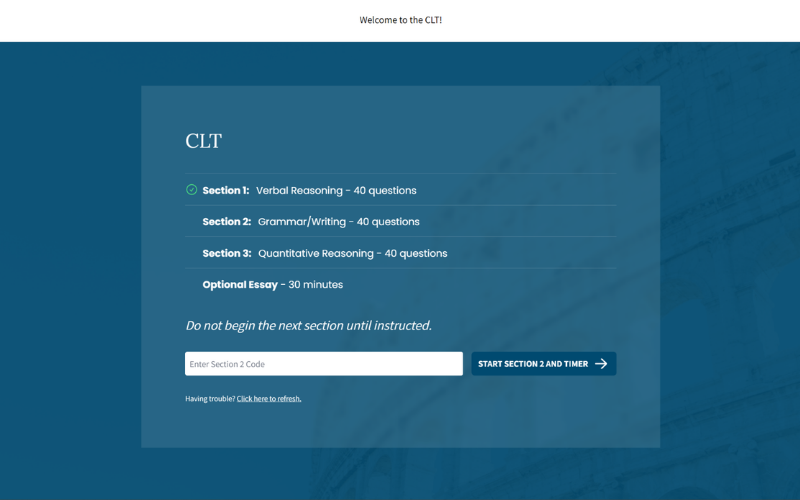
An in-test timer will tell each student how much time they have remaining to complete their current section. The timer will turn red when they have 5 minutes left. Until then, it will remain green.
Proctoring Information
Proctors must ensure compliance with all testing rules in their room and should be familiar with the proctor guide and proctor script before testing. Proctors must monitor no more than 20 students at all times. They must be 21 or older and cannot be related to any of their students. Proctors may answer questions about navigating the testing interface or about the test administration (e.g., repeating instructions), but they cannot address test content in any way during the exam.
If a student arrives late, we ask that they test in a separate room so that students in a room are always progressing through the test together. Additional rooms and proctors should be secured if needed.
If a student experiences a technical problem while testing that hinders their access to the test, please record the time and reach out to CLT via live chat for assistance with restoring the timer. Time can only be added to sections that the student is currently in, so students should not move forward until helped.
Ensure that students do not have access to any of the following:
-
- Phones (must be turned off and out of reach)
- Calculators
- Smart watches
- Books
- Reference materials of any kind
- Snacks (only permitted during their 10 minute break)
Proctors should supply scratch paper (up to six sheets of graph paper, lined paper, or printer paper), writing utensils, and extra chargers. Proctors are responsible for protecting the content of the exam by ensuring that students do not copy or otherwise duplicate exam material, such as by taking pictures of their screens or writing down content to take with them.
Proctors should have a registration spreadsheet with student names, usernames, and passwords to mitigate login issues. Proctors should also ensure that each student is logged into the correct account before testing. Proctors can also verify a student's name and username during the test by clicking on the profile icon in the upper left-hand corner of the test header.
Please see the following video for more information on how to ensure the exam is proctored securely.
Pretest Checklist
- Plan to begin testing between 7–11 AM (local time) with all testers testing simultaneously (no staggered groups).
- The room is adequately prepared, e.g., it is quiet and ventilated, desks are properly spaced, wall posters are covered, etc.
- The technology is ready, e.g., laptops (brightness up), chargers, LockDown Browser, wifi, etc.
- Desks have scratch paper and writing utensils.
- Students have had the opportunity to use the bathroom before testing
- Students have logged in to cltexam.com with their correct usernames/email addresses and passwords and have completed their profiles.
- Proctors are ready to walk around the room and confirm that the name on the screen matches the student in the seat before distributing the TAC.
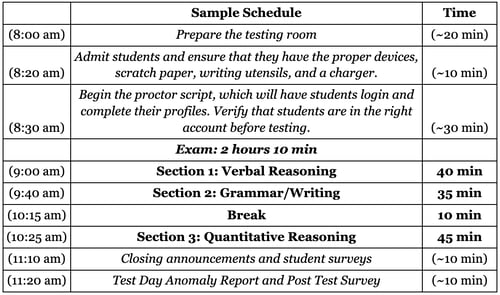
Anomaly Reports, the Post-Test Survey, and Score Release
Within 24 hours of testing, submit a Test Day Anomaly Report if you encounter any anomalies. Reports submitted later may not be processed prior to our post-test data analysis, so students with late-reported or unreported anomalies may be initially flagged and have their scores withheld.
Anomalies are any occurrences that are outside the expected experience of test administration. This would involve any timing discrepancies, technological interruptions, or rule violations.
-
Individual anomaly reports provide information about one or two students who were affected—e.g., arrived late and started at a different time, became ill and left the test before submitting, device crashed, used a phone during testing, etc.
-
General anomaly reports provide information about incidents that affected all students—e.g., internet outage at the school, fire drill during testing, etc.
Collect all scratch paper and dispose of it in a place that students cannot access. Complete the Post-Test Survey to provide feedback on the testing experience.
In-school CLT/CLT10 weekday test scores are released on the Wednesday following test week. For Saturday tests, score release occurs on the following Friday.
Following every exam, CLT analyzes student data for statistical anomalies that may suggest the use of prohibited resources. This analysis is not a substitute for active, vigilant proctoring during the test administration. If anomalies are flagged, CLT will notify your school's Test Coordinator one to two days prior to the scheduled score release.
When student scores are published to your administrator dashboard, if you question the validity of any score, please notify CLT promptly. We are available to assist in your investigation.
If you are looking for a printable version of this manual, please see here.
Thanks for choosing CLT! If you have any questions after reading this page, please contact us at schoolsupport@cltexam.com.