
Top 5 Reasons Remotely Proctored Exams are Voided
Have you ever wondered why a student's remotely proctored exam might not get scored? This page contains the most common reasons tests are unscored, as well as advice for how to avoid these common problems! You will also find additional tips and FAQs at the bottom of the page. Please see this page to familiarize yourself with the rules and instructions for the test.
Table of Contents
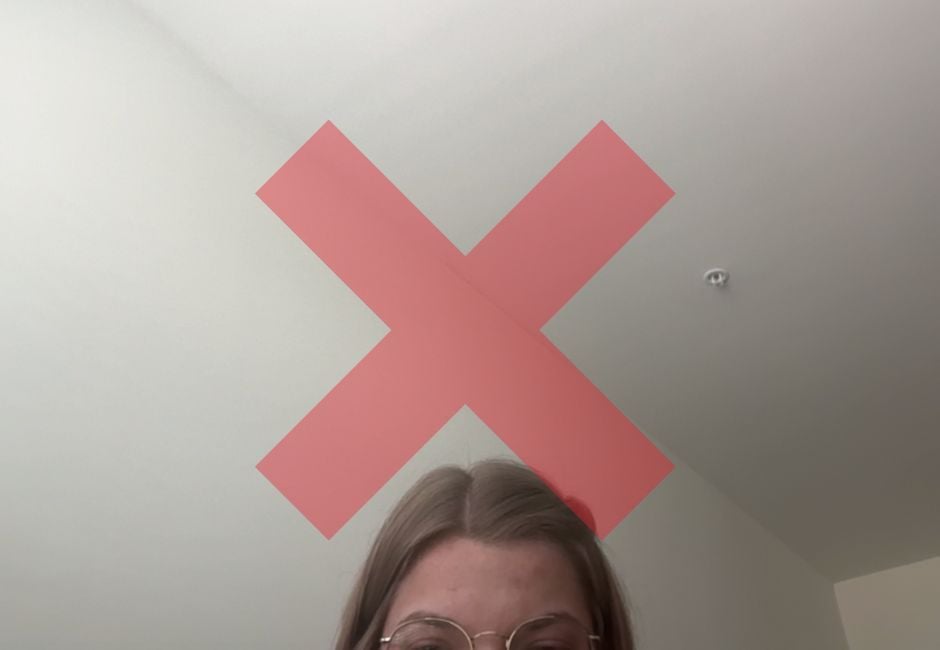
Reason #1: Improper Camera Angle or Moving Out of View
While it might be tempting to angle the camera upwards, the required view for testing includes a student's entire head and shoulders. Students must keep their full face, head, and shoulders straight on and in frame at all times. Without this view, a student's test may not be scored.
Also remember that the CLT does not include bathroom breaks! You may stand up and stretch between sections as long as you stay in front of the camera.
DO:
DO NOT:

Reason #2: Not Completing Pretest Steps
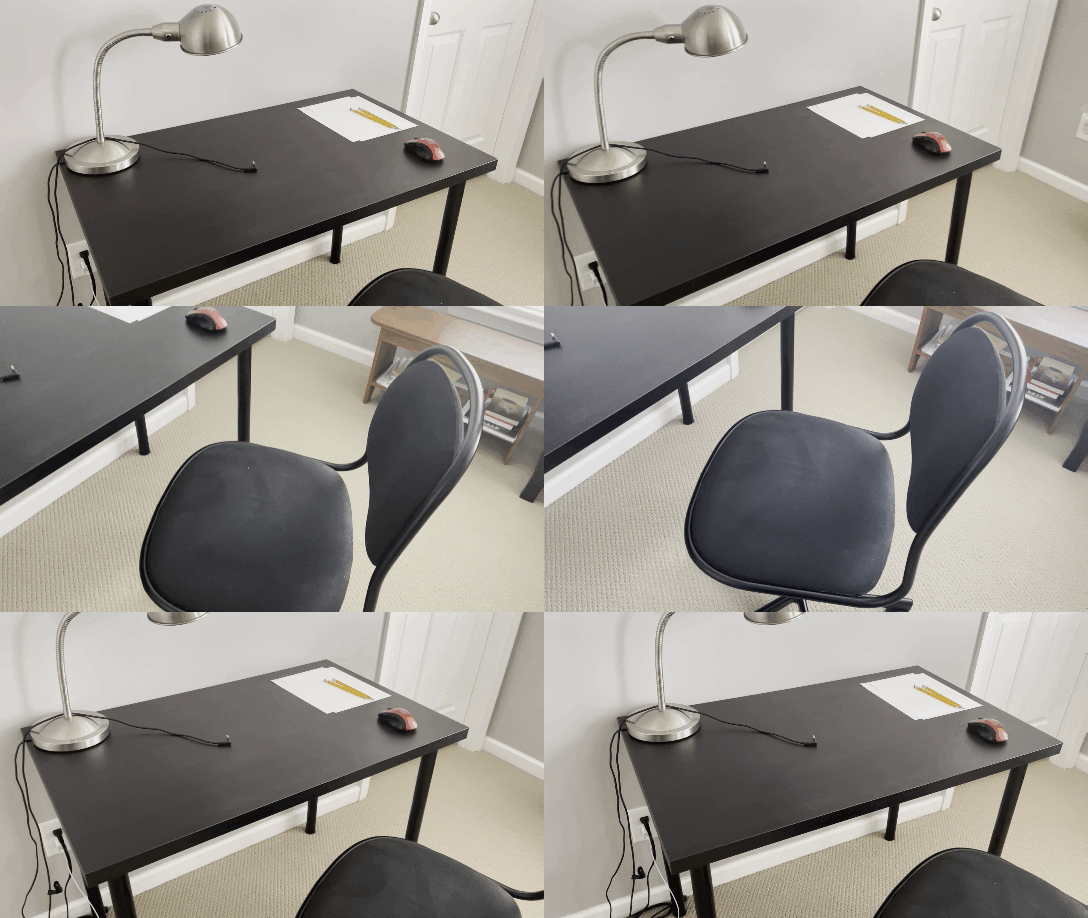
In order for a remotely proctored exam to be scored, you must follow the instructions and thoroughly show your identification, desk, chair, room, wrists, ears, and scratch paper. All of these steps are necessary and failure to complete one can result in an unscored exam.
DO:
DO NOT:
.gif)
Reason #3: Poorly Done Pretest Steps
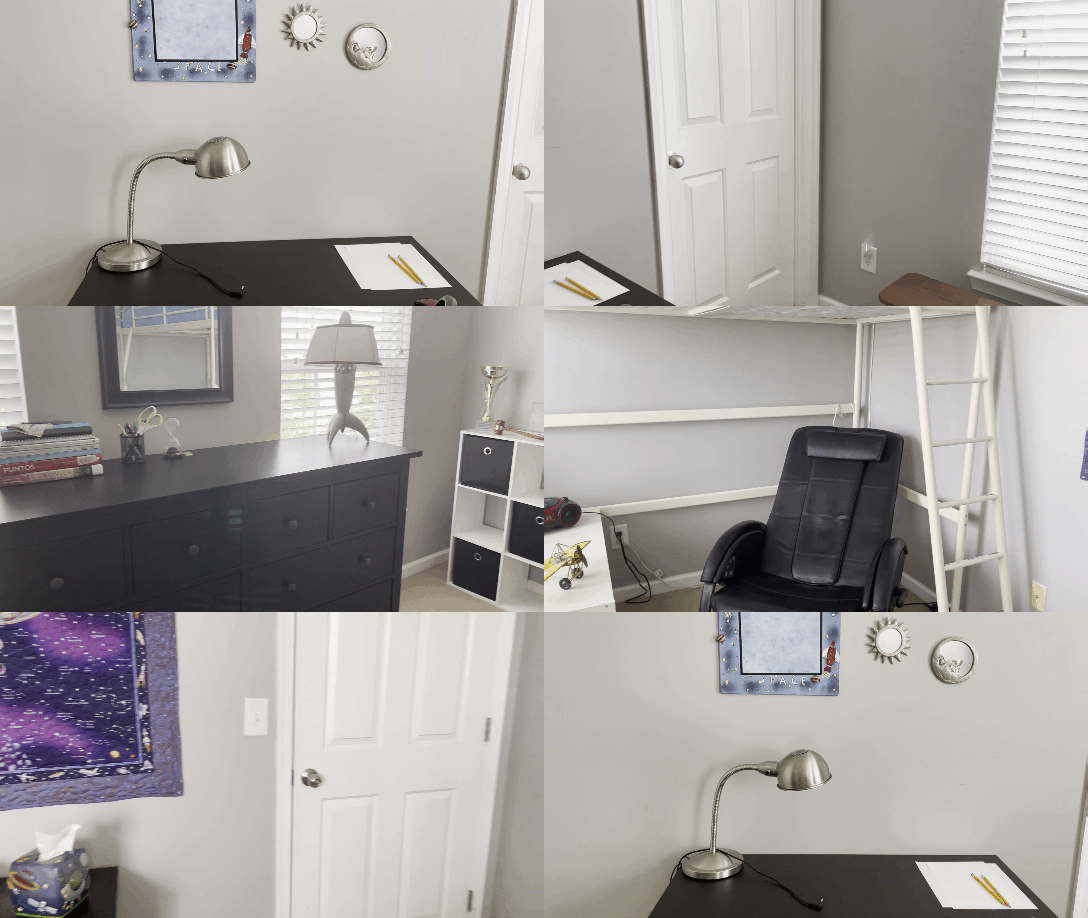
Because the test is recorded and not watched live, it is up to you to ensure that each step of the pretest is completed thoroughly. The test includes short videos as examples of what it should look like. Move the camera to show the entire space at a slow speed.
DO:
DO NOT:
.gif)
Reason #4: Consulting Outside Resources
We understand that testing is stressful, but don't give in to the urge to cheat! Having notes prewritten on your scratch paper, using your phone, or having informational tabs open on your computer will all result in an unscored exam.
DO:
-1.gif)
DO NOT:
.gif)
Reason #5: Presence of Phone in the Testing Room
Phones cannot be in the testing room during the exam. The presence of a phone will result in an unscored exam. If at any point you have to use your phone to contact customer support (e.g. if your internet fails), be sure that you are visible on camera placing the phone out of your room again once the issue is resolved.
DO:
DO NOT:

Tip 1: Turn the lights on in your room.
While you may not need light to see your screen, good lighting is essential to see you and your testing environment. If we cannot see your environment or you, your test will not be scored. A lamp, overhead light, or a window near the testing surface is often enough light. If you are using a window as your main light source, be sure to turn another light in the room in case it gets dark during the exam. Please also check that your light source is not directly behind you.
.gif "camera (2)")
Tip 2: Remove calculators.
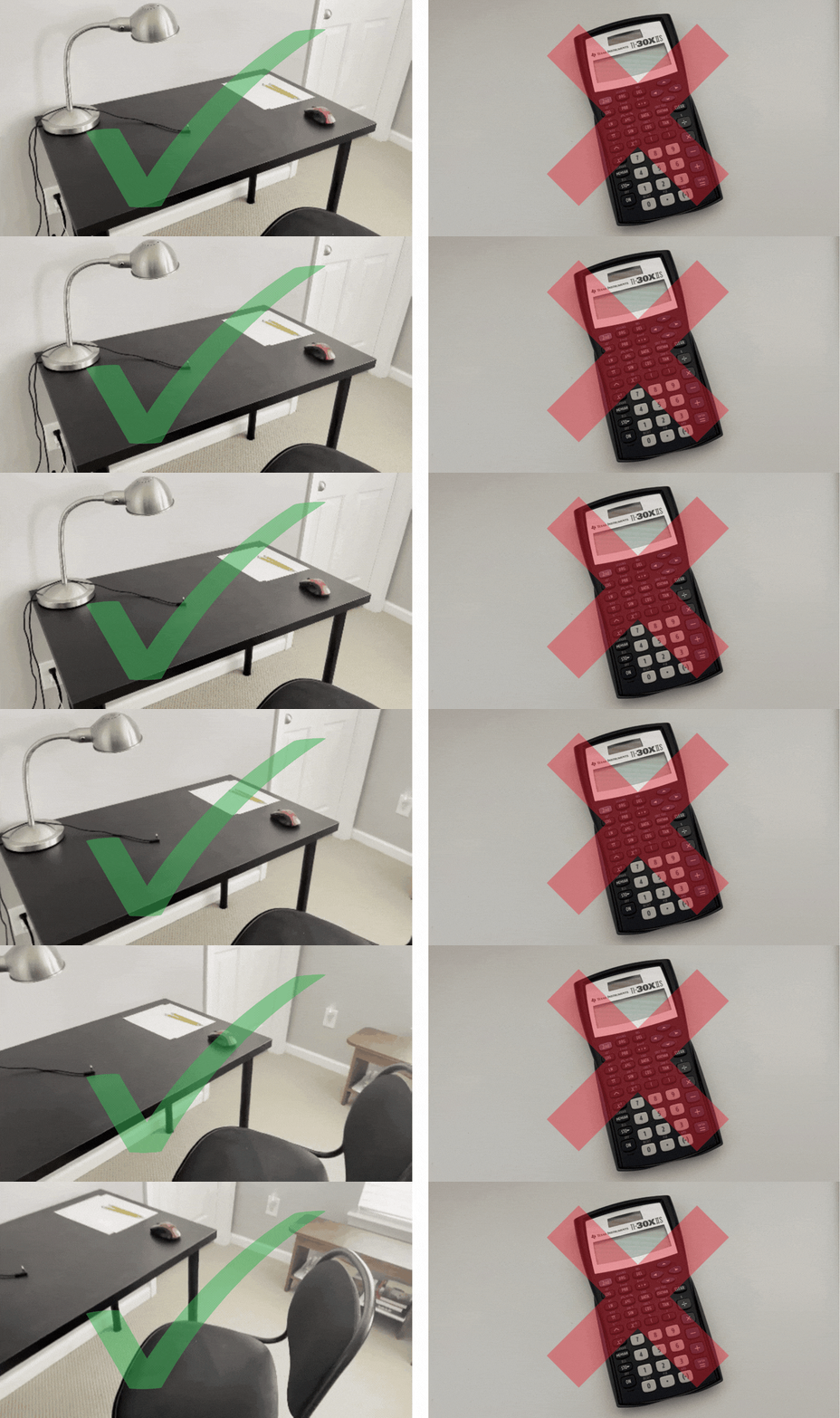
Calculators are strictly prohibited. If a calculator is present on your testing surface, it will result in an unscored exam, so be sure to move any before the exam begins.
Tip 3: Ensure you are alone throughout the entire exam.
Make sure everyone in your household knows that you are testing so that you will not be disturbed. This is also why it is important to test in a room that has doors you can close. A person even walking through the background of your test can be cause for concern during the review process.
.gif "camera (1)")
Tip 4: Put away earbuds and headphones.
While we also love to listen to music while we work, the presence of earbuds and headphones can be very problematic while testing. Be sure to put away headphones and earbuds of any kind.
.gif "calc (1)")
Tip 5: Remove all other devices from the room, and silence computer notifications.
Be sure there are no phones, tablets, or smart devices in your testing room. The presence of other devices will result in an unscored exam. Please also make sure your computer notifications are silenced so you are not interrupted during the test.
.gif "no devices and DND (1)")
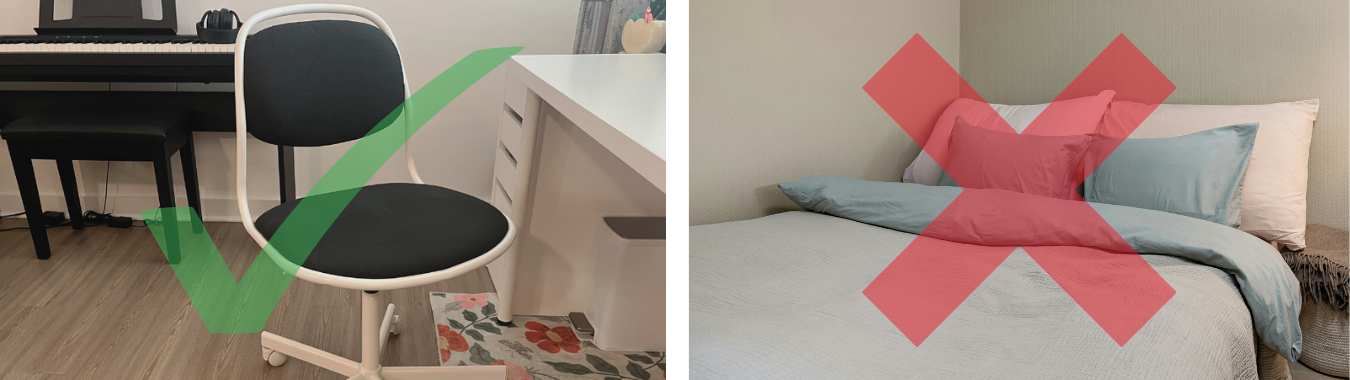
Tip 6: Sit on a regular chair while testing.
We all enjoy comfy chairs and beds, but for your exam we require you to sit on a regular desk/standard chair. Beds and cushioned couches are not appropriate testing surfaces. Testing on a bed will result in an unscored exam.
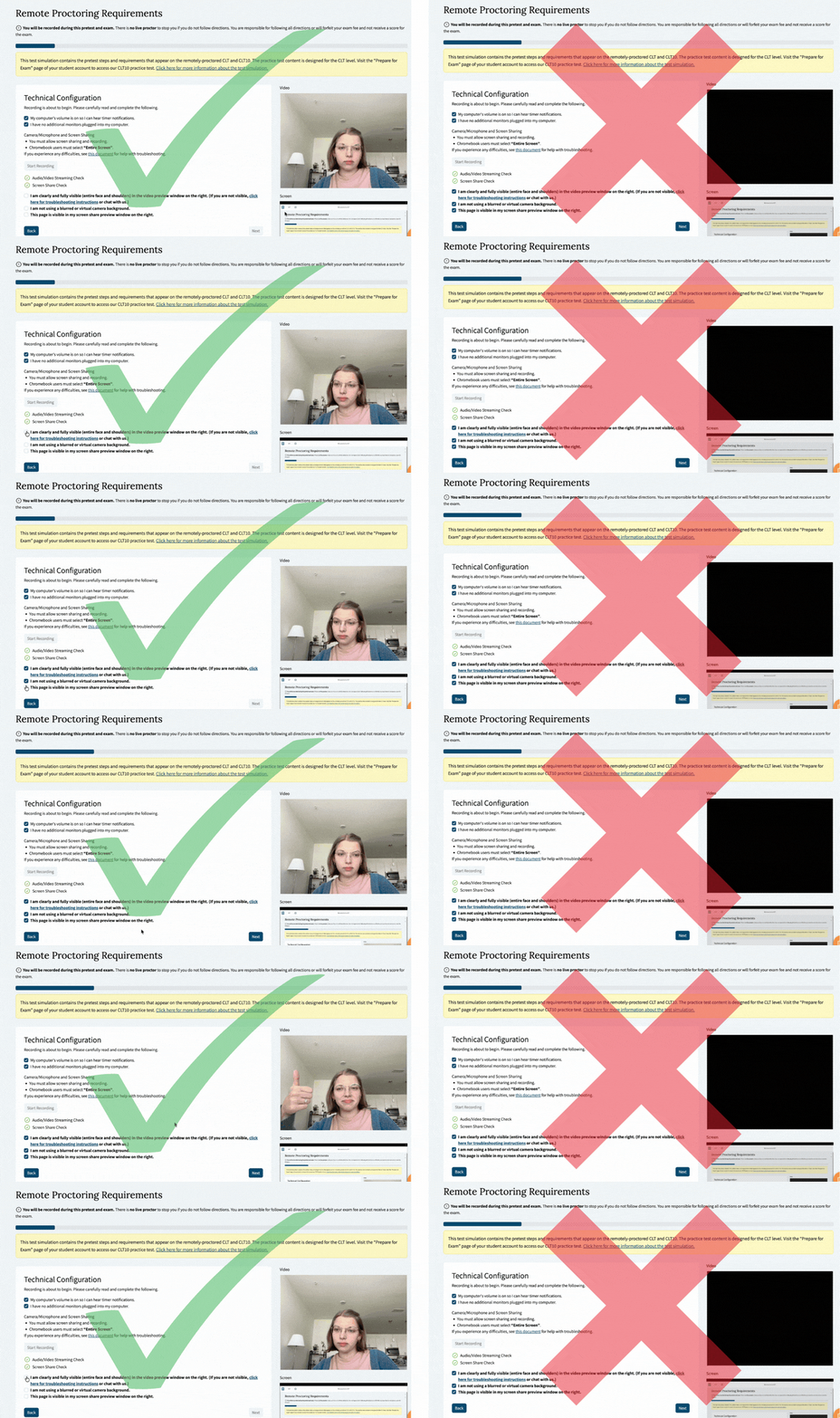
Tip 7: Ensure your computer is working correctly before test day.
Sometimes it can be complicated to find all the right settings for your camera, microphone, and screenshare. Please test your equipment by using the Test Simulation on the student dashboard! You should be able to see yourself in the video box on the right side of the screen, and your screen in the box below. The Test Simulation will also ensure you have LockDown Browser downloaded properly.
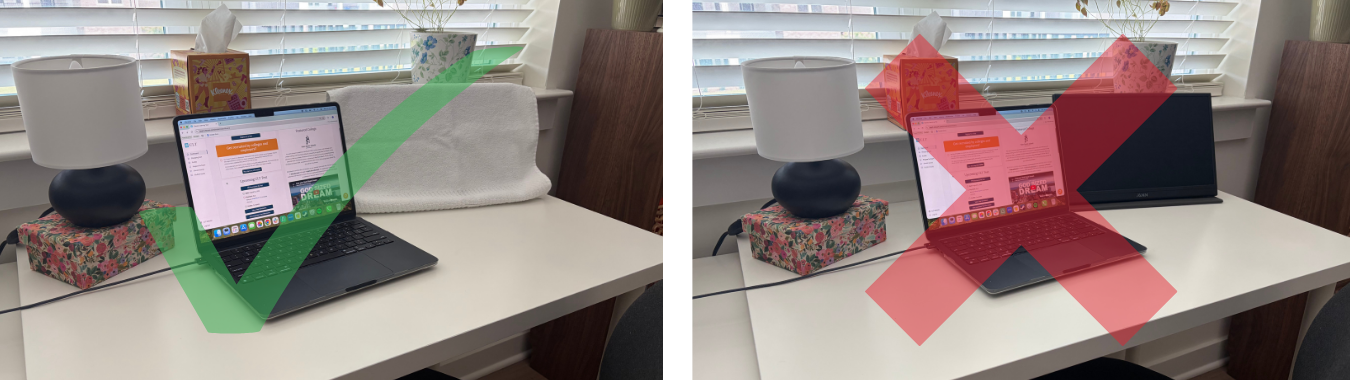
Tip 8: Cover and turn off all monitors and TVs.
An extra monitor or TV may be in the room where you are testing, but these must be covered and turned off while you are testing. Covering them with a sheet or blanket ensures that there are no additional distractions and that these devices do not cause an exam to be flagged.
What happens when my section timer runs out?
You will hear three notification tones when the timer reaches 0:00. You will not be able to select or change any answers once you have run out of time.
Can I move on to a different section if my timer is still running?
Yes, although we encourage you to use all of your leftover time to review your answers. Select "Next Section" to continue your test once you are ready to move on.
Can I go back to a section once I've started another?
At the conclusion of the final section, click the button to submit the test. If you have any issues during your exam, do not submit the test. Please chat with our team so we can help you resolve them. You will be asked to provide your valuable feedback in the form of a survey after you submit. You are then free to leave the testing room. Please do not discuss the content of the exam with anyone, in person or online.
If you have more questions about test day, please contact us via info@cltexam.com or the chat feature on our website. Best wishes on your exam!